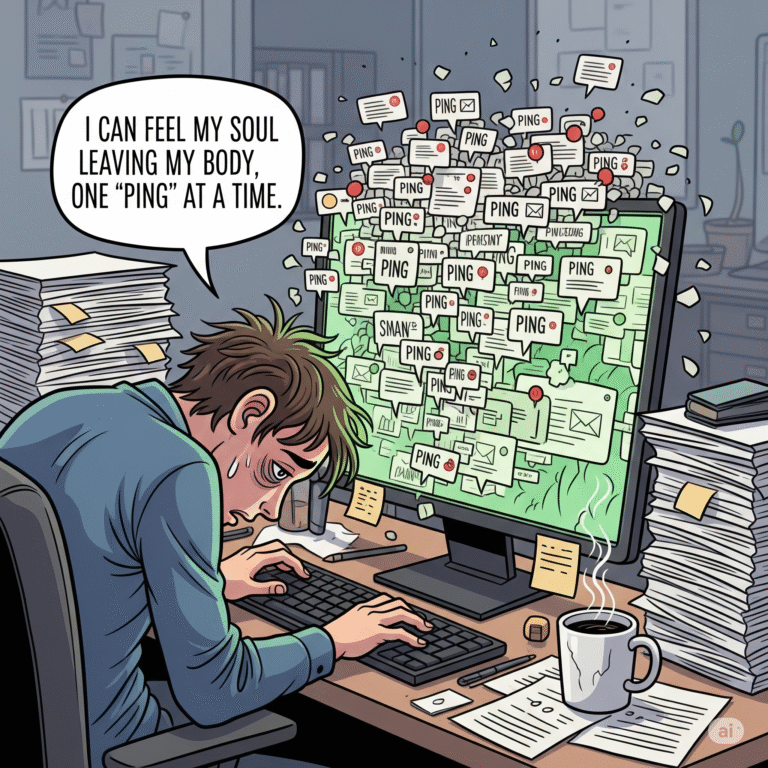
The digital world has shifted into a high-speed, high-glare environment that leaves many of us behind. We are living in an era where our screens are often the first thing we see in the morning and the last thing we see at night. For the neurodivergent community: those living with ADHD, autism, or sensory processing sensitivities: this constant exposure to bright, high-contrast interfaces isn't just an annoyance; it is a direct assault on our focus and well-being. Digital overwhelm is a modern epidemic, and for many, the default "blinding white" background of productivity tools like Google Calendar is the primary culprit.
When we talk about accessibility, we often think about ramps and elevators. But what about the digital architecture that houses our entire lives? Why should a student with ADHD have to battle a migraine just to check when their next class is? Why should a professional with chronic fatigue feel their energy drain simply by looking at a disorganized, glowing grid? The question is, how can we reclaim our digital spaces to work for our brains rather than against them?
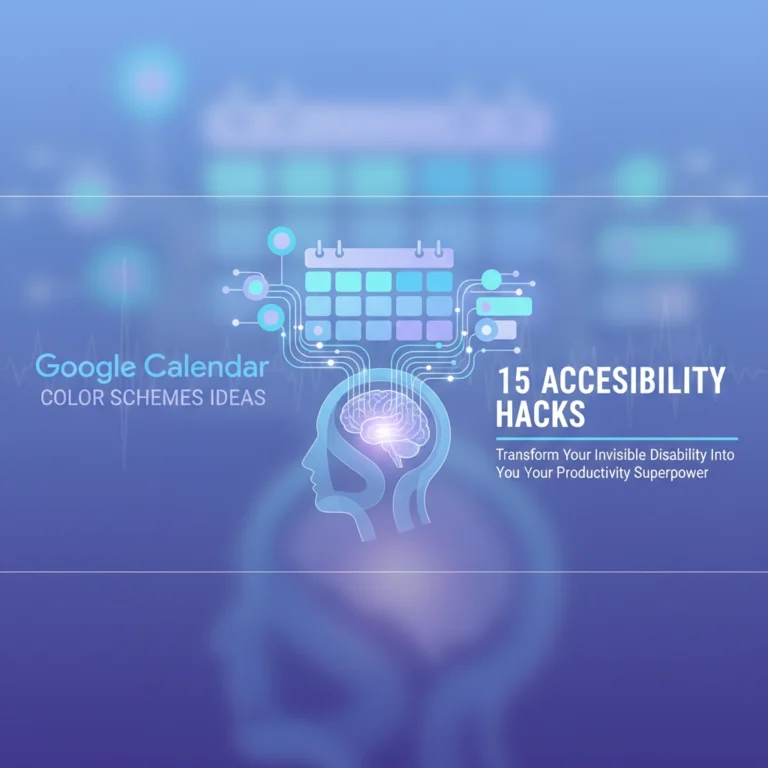
In this guide, we’re going to tackle visual accessibility head-on. In exactly five minutes, you can transform your Google Calendar from a source of stress into a calming, sensory-friendly scheduling hub.
Why Visual Accessibility is Your Secret Productivity Weapon
For many of us, the traditional Google Calendar layout is a "white wall of text" that feels impossible to parse. If you have ADHD, the high contrast between bright white backgrounds and saturated primary colors can cause "visual noise," making it difficult to distinguish between a high-priority meeting and a lunch break. This is where sensory-friendly scheduling comes into play.
By switching to a dark theme and implementing a muted color palette, you are effectively lowering the "volume" of your screen. This isn't just about aesthetics; it’s about nervous system regulation. A darker interface reduces eye strain (asthenopia) and limits the amount of blue light hitting your retina, which is crucial for maintaining focus throughout the day and ensuring you don't disrupt your circadian rhythm.

We often see institutions pat themselves on the back for adding a single "accessibility" toggle hidden deep in a menu. But true empowerment comes from taking those tools and customizing them to fit your specific needs. When you control your visual environment, you control your cognitive load.
The 5-Minute Transformation: Setting Up Dark Theme
Let’s get into the "how-to." Whether you are on a desktop or a mobile device, enabling a dark theme is the first step toward reducing digital overwhelm.
On the Web (Browser)
- Open Google Calendar: Navigate to your calendar on your preferred browser.
- The Gear Icon: Look at the top right corner and click the Settings menu (the gear icon).
- Appearance: Click on Appearance in the dropdown menu.
- Select Dark: A dialog box will appear. Select Dark. You can also choose "Device default" if your computer is already set to dark mode.
- Done: Your screen will instantly flip to a high-contrast dark gray and black.
On Mobile (Android & iOS)
- Open the App: Tap into your Google Calendar app.
- The Hamburger Menu: Tap the three horizontal lines in the top-left corner.
- Settings: Scroll all the way down to find Settings.
- General: Tap on General, then find Theme.
- Choose Your Vibe: Select Dark.
While these steps get you halfway there, the default "Dark Mode" still uses very bright, neon colors for events. To achieve true visual accessibility, we need to go a step further.
Beyond the Toggle: Curating a Sensory-Friendly Palette
A dark background with neon red and bright blue boxes is like a heavy metal concert for your eyes. For sensory-friendly scheduling, we want to move toward a "low-arousal" color scheme. Think sage greens, dusty blues, and soft mauves.
How to Customize Event Colors for Focus
Google Calendar allows you to set custom hex codes for your calendars. Instead of the "Tomato Red" that screams "EMERGENCY," try a softer palette:
- Deep Work: Use a soft slate blue.
- Personal/Rest: Use a muted sage green.
- Deadlines: Instead of red, try a burnt orange or a soft coral.
To change these, hover over your calendar name on the left-hand sidebar, click the three dots (options), and click the plus (+) sign under the color choices to enter a custom hex code.

By using these muted tones, you create a visual hierarchy that doesn't trigger a fight-or-flight response every time you check your schedule. This is particularly helpful for those dealing with brain fog or chronic fatigue, where high-intensity visuals can feel physically taxing.
Challenging the "Default" Culture
Why do we have to work so hard to make our tools usable? It’s a question we ask constantly at Dr. Disruptor. Most tech companies treat accessibility as a secondary feature: a "nice-to-have" for a minority of users. But the reality is that visual accessibility benefits everyone.
When a student who consistently submits assignments late because they can't handle the visual clutter of their dashboard finally gets a tool that works, that's not just a "feature update": that's a lifeline. We need to stop accepting "good enough" from the software we pay for. If the default settings of a multibillion-dollar platform are causing sensory overload, the platform is the problem, not the user.
We’ve seen similar issues in hardware, which is why we’re so passionate about unboxing and reviewing tools that actually consider the user’s environment, like our look at the Cozyla Calendar 2. These devices are starting to bridge the gap between "standard tech" and "empowering tech."
Empowering Your Workflow with Toolsurf
At Dr. Disruptor, we believe in the power of the right ecosystem. Setting up your Google Calendar is just the beginning. To truly conquer digital overwhelm, you need a suite of tools that work in harmony with your neurodivergent brain.
This is why we recommend checking out our referral partners and the curated lists at Toolsurf. Finding the right browser extensions to further dim your screen or simplify the layout of your most-used websites can be a total game-changer. These tools serve as the "digital ramps" we need to navigate a world that wasn't built for us.

Specific Examples: Who Does This Help?
Let’s look at a concrete scenario. Meet Sarah, a freelance graphic designer with ADHD. Her calendar is a chaotic mix of client meetings, deadlines, and personal appointments. In the standard "Light Mode," all the colors bleed together, and the bright white background makes her eyes burn after an hour of work. She finds herself avoiding her calendar altogether, leading to missed calls and late projects.
By spending five minutes implementing a sensory-friendly scheduling system:
- The dark theme reduces the glare, allowing her to look at her schedule without physical discomfort.
- The muted color palette categorizes her tasks without overwhelming her.
- The reduced visual noise allows her to see "white space" (or rather, dark space) in her day, which helps her manage her time-blindness.
Sarah isn't "lazy" or "disorganized." She was simply using a tool that was poorly calibrated for her sensory needs.
Final Thoughts: Reclaiming Your Time
Your calendar should be a map of your life, not a source of dread. Taking five minutes to adjust your visual accessibility settings is an act of self-care and a declaration of independence from the "default" world.
We are moving toward a future where "disability advocacy" isn't just about pointing out what's wrong, but about actively building and sharing the solutions that make life better. Whether it's through innovative publications or simply changing a setting on your phone, every step toward a more accessible world is a victory.
Are you ready to stop fighting your screen and start using it? Go ahead: take those five minutes. Your brain will thank you.
Want to dive deeper into the world of empowering tech and disability advocacy? Explore our full portfolio of projects and join us in disrupting the status quo. From kids' books to tech reviews, we are building a world where everyone has the tools to succeed.

Ready to find more tools that fit your life? Check out our curated selections on Toolsurf and start your journey toward a more accessible digital life today.