The world has shifted toward digital organization, and for many neurodivergent individuals, Google Calendar color coding has become a lifeline for managing executive function challenges. Yet somehow, the simple act of changing calendar colors can feel like navigating a maze designed by someone who clearly never experienced sensory overload or decision fatigue.
Why does something so seemingly basic become so overwhelming? Because Google Calendar color customization isn't just about aesthetics: it's about creating visual systems that work with, not against, your brain's unique wiring.
The Hidden Struggle of Calendar Overwhelm
Picture this: You open Google Calendar, and you're greeted by a chaotic rainbow of default colors that make absolutely no sense. Your work meetings are neon green, personal appointments are bright orange, and medical appointments are that aggressive blue that somehow feels like it's shouting at you. Your brain immediately goes into overdrive trying to process what each color means, and before you know it, you've spent twenty minutes staring at your screen without actually accomplishing anything.
This isn't laziness or perfectionism: this is your neurodivergent brain trying to create order from visual chaos. Calendar color organization becomes essential when your working memory needs all the help it can get to distinguish between different types of commitments.
The question is: how can you change these colors without falling down a rabbit hole of endless customization options?

Why Color Coding Matters for Executive Function
For neurodivergent individuals, Google Calendar color coding serves multiple cognitive functions simultaneously:
• Reduces decision fatigue – When colors are consistent and meaningful, your brain doesn't waste energy figuring out what each appointment represents
• Improves pattern recognition – Visual patterns help with time management and scheduling conflicts
• Decreases anxiety – A well-organized, visually coherent calendar feels manageable rather than overwhelming
• Supports working memory – Colors act as external memory aids when internal memory feels unreliable
But here's the catch: Google's default approach to calendar colors can actually work against these benefits. The preset options often feel arbitrary, and the customization process can become a time sink that defeats the entire purpose.
The Desktop Method: Your Starting Point
Let's tackle the most straightforward approach first. Google Calendar color customization on desktop gives you the most control with the least cognitive load.
Step 1: Open Google Calendar in your web browser
Navigate to calendar.google.com and make sure you're viewing your main calendar interface.
Step 2: Locate your calendar list
On the left side of your screen, you'll see a section called "My calendars." This is where all your different calendars are listed: work, personal, family, medical, whatever categories you've created.
Step 3: Find the three dots
Next to each calendar name, you'll see three vertical dots. This is your gateway to calendar color organization. Click on these dots for the calendar you want to modify.
Step 4: Select your color
A color palette will appear with preset options. These aren't just random colors: they're designed to be distinct enough that your brain can easily differentiate between them, even during moments of cognitive fog.
Step 5: Consider custom colors (optional)
If the preset options don't work for your system, click the plus sign (+) to access custom color options. You can input specific hex codes if you have a particular color system in mind.

The Mobile Approach: When You're On the Go
Sometimes you need to adjust your Google Calendar color coding while you're away from your computer. The mobile process is slightly different but equally manageable.
For iPhone and Android users:
• Open the Google Calendar app
• Tap the three horizontal lines (hamburger menu) in the upper left corner
• Select "Settings" from the menu
• Choose the specific calendar you want to modify
• Tap "Color" and select from the available options
The mobile interface offers fewer customization options than desktop, but it covers the essential calendar color organization needs for most situations.
Single Event Color Changes: The Micro-Adjustment Strategy
What happens when most of your calendar works perfectly, but you have one recurring meeting that just needs to stand out? You don't need to change an entire calendar's color: you can modify individual events.
Here's the process:
• Click on the specific event you want to change
• Look for the color palette icon (it looks like a small colored square)
• Select your preferred color from the dropdown menu
This approach is particularly useful for high-priority items that need extra visual attention, like important deadlines or medical appointments that you absolutely cannot miss.
Building Your Personal Color System
The real power of Google Calendar color customization comes from developing a consistent system that makes sense to your brain. Rather than random color assignments, consider these approaches:
Energy-based color coding:
• Red for high-energy, important commitments
• Blue for low-energy, routine tasks
• Green for flexible or optional activities
• Yellow for deadlines and time-sensitive items
Life domain approach:
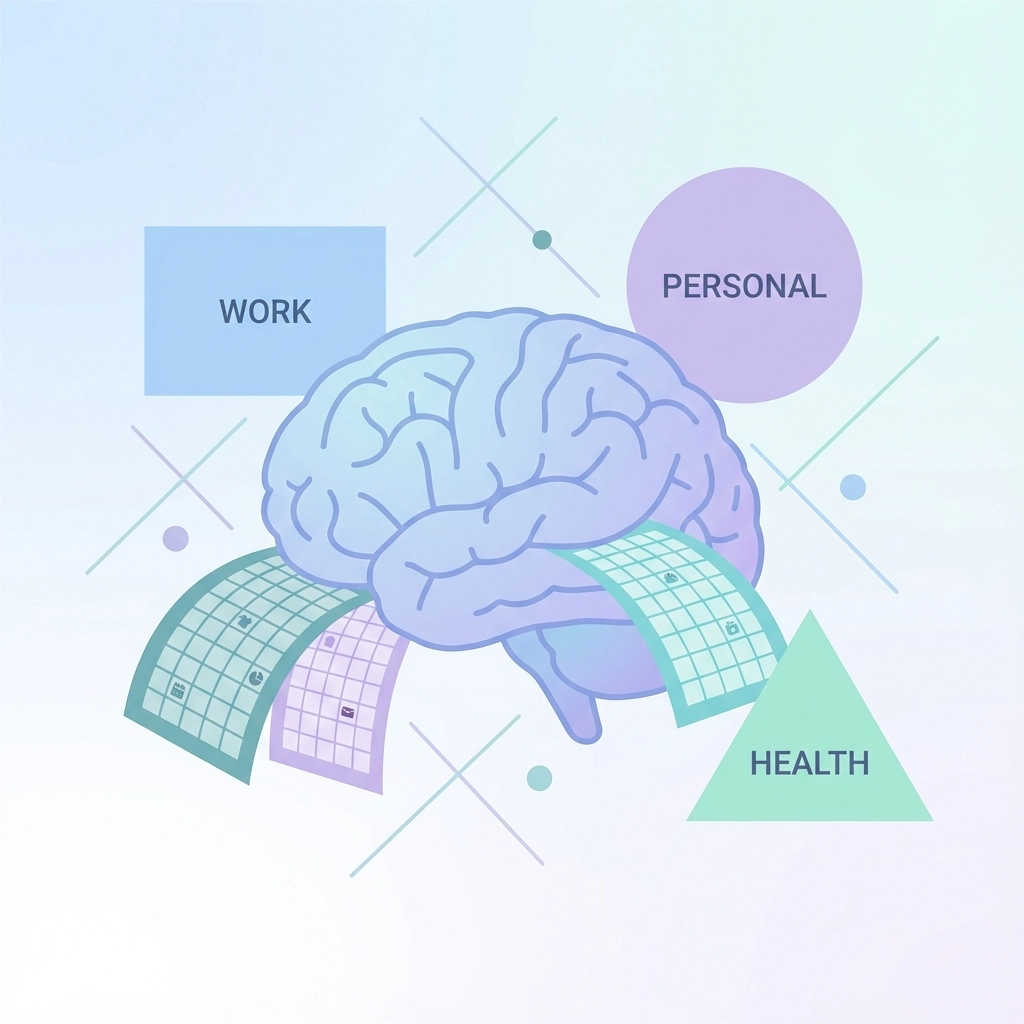
• Work-related items in professional blues and grays
• Personal activities in warmer tones
• Health and medical appointments in calming greens
• Family and social events in vibrant but not overwhelming colors
Urgency and importance matrix:
• Urgent and important: Bold, attention-grabbing colors
• Important but not urgent: Strong but not alarming colors
• Urgent but less important: Warning colors that don't create panic
• Neither urgent nor important: Soft, background colors
The key is choosing a system that feels intuitive to you, not what works for someone else or what looks "professional."
Common Pitfalls and How to Avoid Them
Google Calendar color coding can become counterproductive if you fall into these traps:
Over-customization syndrome: Spending more time perfecting your color system than actually using your calendar. Set a timer for color adjustments and stick to it.
Too many categories: Having seventeen different colored calendars defeats the purpose of visual simplification. Aim for 5-7 distinct categories maximum.
Ignoring accessibility: Choose colors that work for you even during sensory overload or when using devices with different screen settings.
Forgetting about sharing: If you share calendars with others, remember that your color changes only affect your view. Consider how this impacts collaborative planning.
Troubleshooting When Things Go Wrong
Sometimes calendar color organization doesn't work as expected. Here are the most common issues and solutions:
Colors not saving: This usually indicates a browser cache issue. Try refreshing the page or clearing your browser cache.
Changes not syncing across devices: Google Calendar can take a few minutes to sync color changes. Wait 5-10 minutes before assuming something went wrong.
Shared calendar color conflicts: Remember that color changes are personal to your view. If you're coordinating with others, discuss color meanings verbally rather than assuming they see what you see.
Making It Sustainable for Your Neurodivergent Brain
The best Google Calendar color coding system is one you'll actually maintain. Here's how to set yourself up for long-term success:
Start simple: Begin with three basic categories and add complexity only if needed.
Document your system: Write down what each color means. Your future self during a stressful period will thank you.
Review and adjust: Schedule monthly check-ins to ensure your color system still serves your current needs.
Be flexible: Life changes, and so should your organizational systems. Don't treat your color choices as permanent decisions.
The Bigger Picture: Why This Matters
Calendar color organization might seem like a small detail, but for neurodivergent individuals, these micro-optimizations add up to significant improvements in daily functioning. When your calendar supports rather than fights your cognitive style, you free up mental energy for the things that actually matter.
Your Google Calendar doesn't need to look like anyone else's. It needs to work for your brain, your schedule, and your life. By taking control of something as simple as calendar colors, you're taking a step toward building systems that truly support your neurodivergent strengths rather than constantly working around perceived limitations.
The goal isn't perfection: it's progress toward a system that feels manageable, sustainable, and genuinely helpful for your unique way of navigating the world.